




If you have a trial version of Windows Server, this is how you can extend the evaluation period.
From <https://serverdecode.com/extend-evaluation-period-windows-server/>
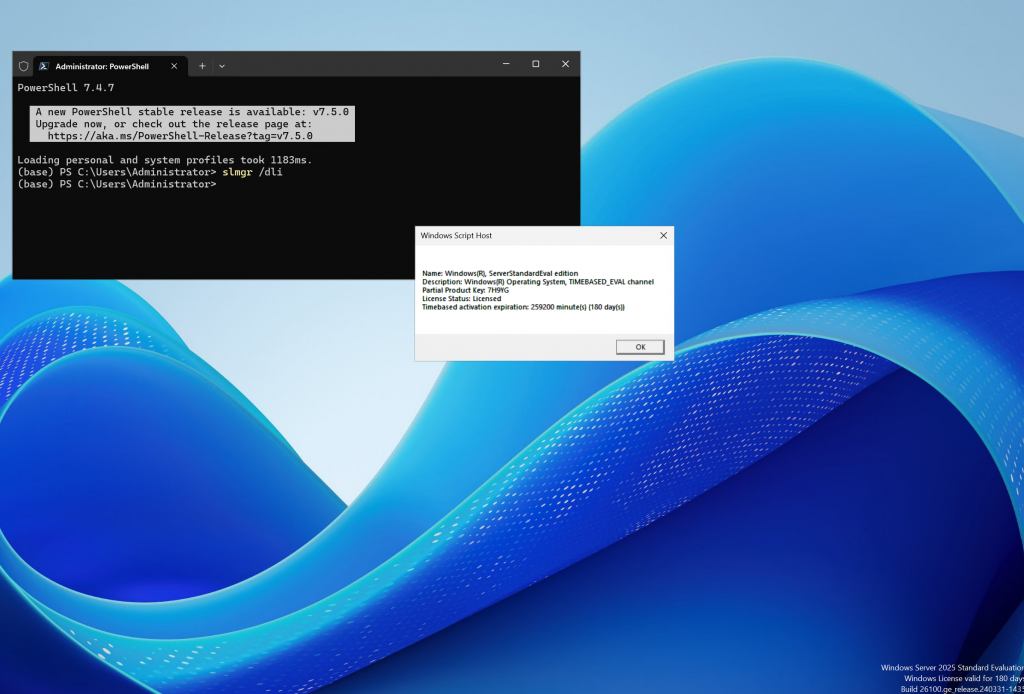
For Windows Server versions from 2019 to 2025, and even older editions, it is possible to prolong the evaluation period beyond the standard 180-day limit. This guide explains how to achieve this.
Typically, you can install nearly any version of Windows Server without initially providing a license key, enjoying all its features without restrictions for a 180-day evaluation period. After this initial period, a valid product key becomes necessary to continue using the server without limitations. Since the activation keys for Windows Server can be costly, Microsoft provides a command-line option that enables you to reset the trial period multiple times. This allows extended use of Windows Server in its fully unlocked state.
However, be aware that this command can only be executed a limited number of times, as each use resets the evaluation duration back to 180 days and decreases the available “rearm” count by one. Once the rearm count reaches zero, you will no longer be able to reset the evaluation period again.
This guide covers the specific steps required to reset the evaluation period of Windows Server installations.
Extending the Windows Server Evaluation Period
Follow these instructions to reset the evaluation period for Windows Server 2022, 2019, 2016, and previous versions:
- Open Start on Windows Server.
- Search for Terminal or Command Prompt (or PowerShell), right-click the top result, and select the Run as administrator option.
- Type the following command to view the details of the current license and press Enter:
slmgr /dlv - Type the following command to reset the trial period of Windows Server and press Enter:
slmgr /rearm
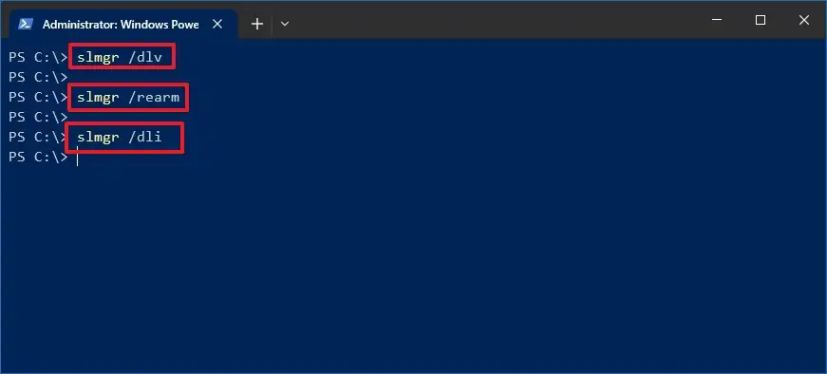
Type the following command to confirm the extension of the trail and press Enter:
slmgr /dli
Restart the server.
Open Command Prompt again.


